You can turn on a PC from your phone with Wake-on-LAN: the phone sends a small "magic packet" over your home network, and the PC's network card, which stays powered while the PC is off, switches it on. It needs Wake-on-LAN turned on in the BIOS/UEFI and on the network adapter, Windows Fast Startup turned off, and usually a wired Ethernet connection. From inside your home network that's all; from outside it, you need something at home to send the packet for you.
How Wake-on-LAN works
A magic packet is a short broadcast message that contains your PC's network address (its MAC address) repeated many times. Every device on the network hears it, and the network card with that address wakes the PC. Two things follow from that:
- The PC's network card has to stay powered and listening while the PC is off. That's what the BIOS and adapter settings below are for.
- The packet is a broadcast on your local network. Routers don't pass broadcasts in from the internet, which is why waking from away is the hard part.
Step 1: Turn on Wake-on-LAN in the BIOS/UEFI
Open the BIOS/UEFI setup
Restart the PC and press the setup key while it starts, usually Del, F2, F10 or F12. On Windows 11 you can also go to Settings → System → Recovery → Advanced startup → Restart now, then Troubleshoot → Advanced options → UEFI Firmware Settings.
Find the wake setting
Every motherboard names it differently. Look under Power, APM or Advanced for something like Wake on LAN, Power On By PCI-E, Resume by PCI-E Device, Wake from onboard LAN or PME Event Wake Up, and turn it on.
Turn off ErP / EuP
If there's an ErP, EuP or Deep Sleep setting, turn it off. It saves standby power by cutting the network card off when the PC is shut down, which stops it hearing the packet.
Save and exit
Step 2: Set up the network adapter in Windows
- Open Device Manager → Network adapters and double-click your Ethernet adapter.
- On the Advanced tab, set Wake on Magic Packet to Enabled. On Realtek adapters, also enable Shutdown Wake-On-Lan (or "WOL & Shutdown Link Speed") if it's there.
- On the Power Management tab, tick Allow this device to wake the computer. You can also tick Only allow a magic packet to wake the computer, so other network traffic doesn't wake it from sleep.
Step 3: Turn off Fast Startup
Fast Startup makes "Shut down" a kind of hibernation, and many network cards don't listen for a magic packet in that state. Go to Control Panel → Power Options → Choose what the power buttons do → Change settings that are currently unavailable, and untick Turn on fast startup.
Step 4: Use Ethernet if you can
- Wired Ethernet is what Wake-on-LAN was designed for, and the reliable way to turn on a PC from a full shutdown.
- Wi-Fi-only PCs usually can't be woken from a full shutdown. Many laptops can wake from sleep over Wi-Fi ("Wake on Wireless LAN") if the Wi-Fi adapter and the PC support it.
- Laptops usually need to be plugged in to wake.
- Your phone can stay on Wi-Fi. It only has to be on the same home network as the PC.
Step 5: Find the PC's MAC address
Most wake-on-LAN apps need the MAC address of the wired adapter. Open Command Prompt, run ipconfig /all, and note the Physical Address under your Ethernet adapter (six pairs of characters, like A1-B2-C3-D4-E5-F6). Apps that pair with a program on the PC find it for you.
Step 6: Send the packet from your phone
Any wake-on-LAN app for iPhone or Android can send the packet once you've entered the MAC address. Test it properly: shut the PC down from Windows (not by holding the power button or pulling the plug, which can leave the network card unpowered), wait a minute, then wake it from the phone with the phone on your home Wi-Fi.
Turn on your PC from your phone with Nudge
Nudge is QAEM's app for this: a phone app for iPhone and Android, plus a free companion app for Windows. It's coming soon to the App Store, Google Play and the Microsoft Store.
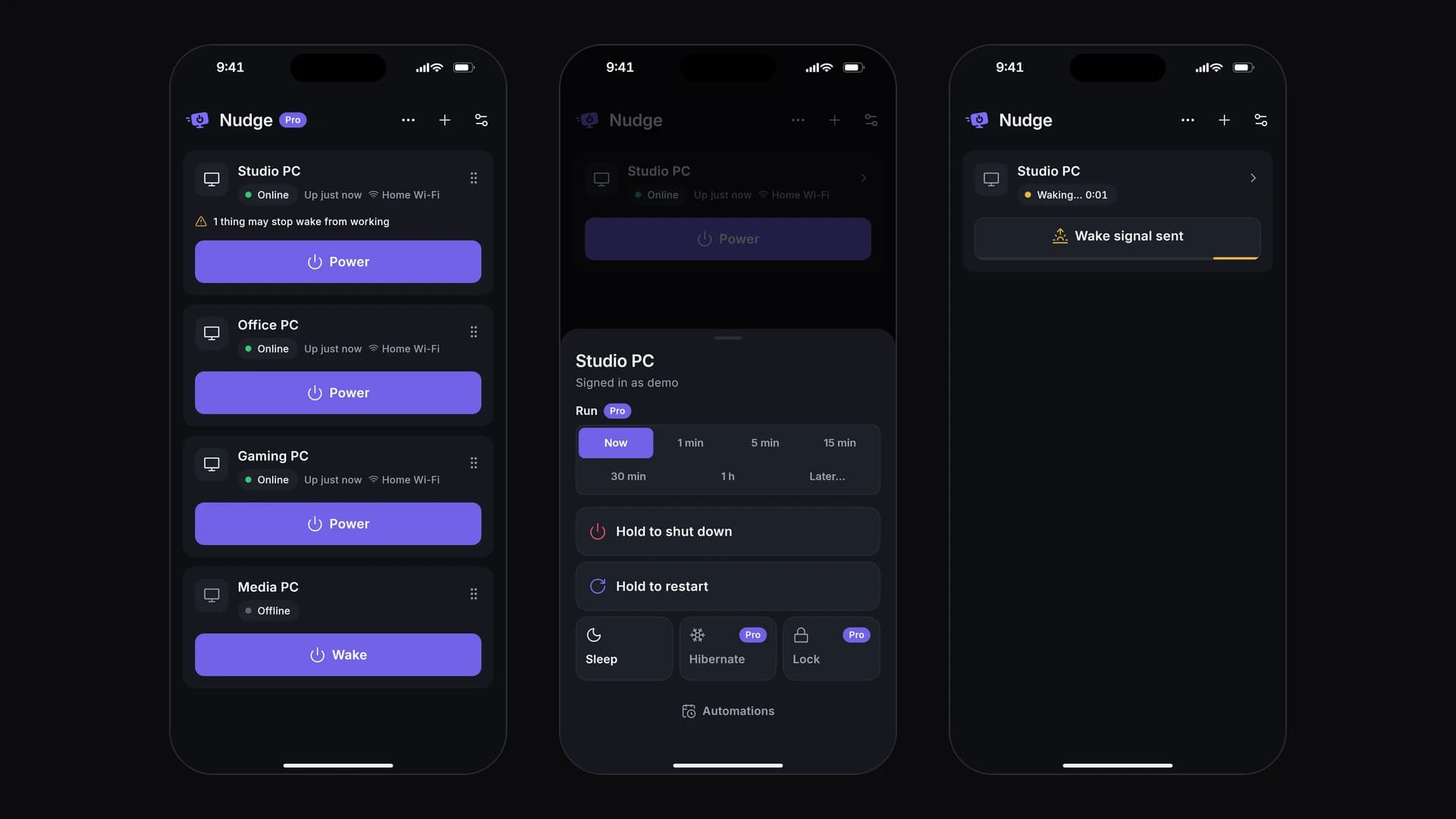
- Wake, shut down, restart and sleep from the phone. Shut down and restart are press-and-hold, so a stray tap does nothing.
- Checks your wake settings. The PC app looks at what waking needs and fixes most of it in one click: the adapter settings, Fast Startup and a network set to Public. The BIOS setting is the one you check yourself, since Windows can't see it.
- Pairs with a code or a QR code. No MAC address to type, no account, no cloud and no ads. Commands go straight to your PC over your home network, encrypted.
- Works at the sign-in screen, because the PC app runs as a Windows service.
- Pro ($9.99 once) adds hibernate and lock, "in 30 minutes" or "at 11:30 PM" actions, automations, groups of PCs and control from away through your own Tailscale network.
Setup and troubleshooting are on the Nudge support page.
Can you turn on a PC over the internet?
Yes, but not by sending the packet straight from your phone over mobile data. The packet has to be broadcast from inside your home network, so you need something at home that's always on to do it for you. The usual ways:
| Way | How it works | Watch out for |
|---|---|---|
| A router with a wake feature | Some routers can send the packet themselves. A FRITZ!Box, for example, can wake a wired device from its web interface or when it's reached from the internet. | Your router has to support it, and remote access to it needs a public IPv4 or an IPv6 address. |
| A VPN plus an always-on device | Connect to your home network over a VPN (such as Tailscale or WireGuard), then have a device at home, like a Raspberry Pi, a NAS or a home server, send the packet. Self-hosted tools such as UpSnap give that a web page. | A VPN alone isn't enough: Tailscale says it can't carry wake-on-LAN broadcasts, even with subnet routing. The sender has to be on the LAN. |
| Port forwarding | Forward a UDP port on the router to the network's broadcast address, then send the packet to your public IP. | Many routers refuse to forward to a broadcast address or forget it after a while. It doesn't work at all if your provider uses CGNAT, where you have no public IPv4 address. And it opens a port to the internet. |
| A smart plug | Set the BIOS's Restore on AC power loss (or AC Power Recovery) to Power On, then switch the plug off and on from its app. The PC starts when power returns. | Only cut power to a PC that's already shut down. The setting is meant for power cuts, so it's a workaround rather than a design. |
Wake-on-LAN not working?
Go through these in order:
- BIOS: Wake-on-LAN on, ErP/EuP off. A BIOS update can reset them.
- Shut down cleanly from Windows once after changing settings, then try again.
- Fast Startup off.
- Ethernet, not Wi-Fi, for waking from a full shutdown.
- Same network: the phone must be on the PC's home network, not a guest network or mobile data.
- Router isolation: some routers stop devices seeing each other ("AP isolation" or "client isolation"). Turn it off.
- Give it time: some PCs take a minute or more to boot and show up on the network.
The Nudge support page has more, including iPhone's Local Network permission and Android's Alarms & reminders for timed wake-ups.
Wake-on-LAN and remote desktop
A remote desktop app connects to a PC that's running. If yours is off, wake it first with any of the ways above, then connect.