Windows 11 and 10
Desktop widgets for Windows
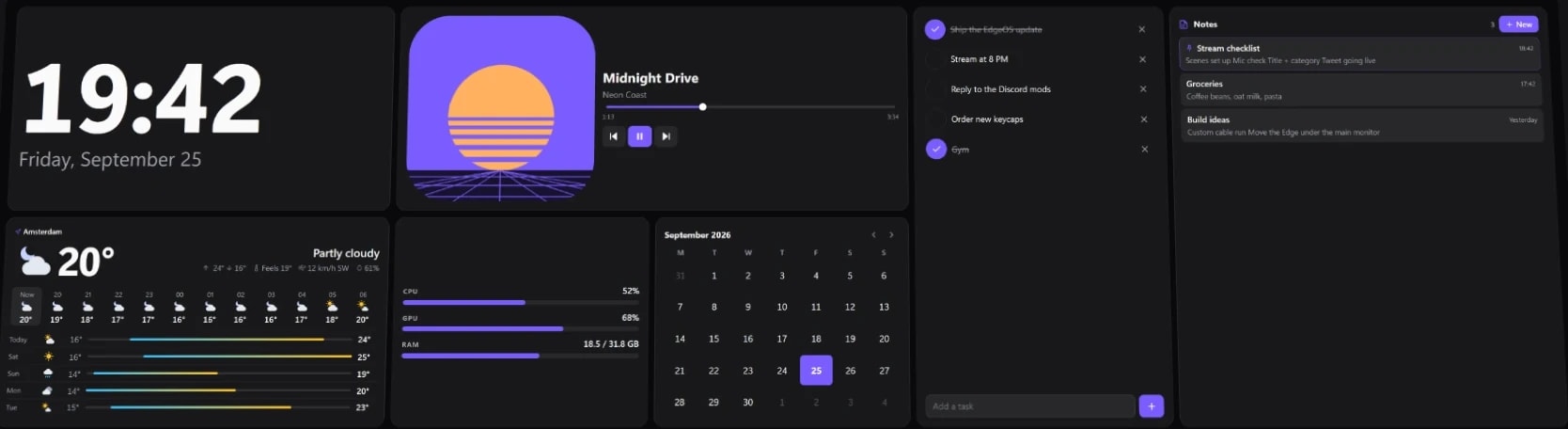
Put a clock, the weather, your calendar, CPU and GPU stats, what's playing and a volume mixer on your desktop, laid out the way you like, on any monitor. EdgeOS is free, with no account.
EdgeOS
Desktop widgets and dashboards for Windows, on your monitors and the CORSAIR XENEON EDGE.
- Free
- Premium $19.99 once
- 88 built-in widgets
- Any monitor
- Windows 10/11
On your monitors
Behind your apps, or on top
Each monitor chooses: EdgeOS sits on your desktop behind your windows, or stays over every window.
See-through, if you like
A transparent background shows your wallpaper between the widgets, and clicks there reach your desktop.
A layout per monitor
Arrange each screen on its own, and save setups as profiles for gaming, work or streaming.
Out of the way in games
EdgeOS can pause by itself while a game is full screen or your CPU or GPU is busy. That's free.
Widgets you can place.
Productivity
Streaming
PC controls
Monitoring
Launch
Built In
Setup guides
Add widgets to your Windows desktop
Put a clock, the weather, CPU and GPU stats, media controls and more on your Windows 11 or 10 desktop with EdgeOS, free: on any monitor, behind your apps or on top.

Set up Stripe Connect
Make a read-only Stripe key and connect it to Stripe Connect in EdgeOS or iCUE: the exact permissions, test mode, privacy, and how to revoke the key.
Set up EdgeOS
Install EdgeOS, put it on a monitor or your XENEON EDGE (in Desktop Mode or Widget Mode) and, if you bought it, activate Premium.


 +4
+4Install an iCUE widget on the XENEON EDGE
Import a .icuewidget file into iCUE, place it on your XENEON EDGE and find its settings.
EdgeOS skins
Install, apply and make .edgeskin files: a whole look for the XENEON EDGE in one file, with its layouts, widgets, colours and background.
Build your own EdgeOS widget
Make a custom widget for EdgeOS from a widget.json and an index.html: options, live system and media data, text size, and how iCUE widgets run inside EdgeOS.
Common questions
How do I add widgets to my Windows 11 desktop?
Install EdgeOS, a free app, open Settings → Screens and switch on your monitor. Then, on the Layout page, drag widgets such as a clock, weather or CPU stats from the Widgets panel onto your screen.
Is there a free desktop widget app for Windows 11?
Yes. EdgeOS is free on Windows 11 and 10, with 46 of its 88 built-in widgets, the layout editor, skins and your own widgets. Premium is an optional $19.99 one-time upgrade.
Can I put a system monitor on my desktop?
Yes. EdgeOS has CPU, GPU, memory, disk and network widgets with live graphs, plus sensors and temperatures, all free. Game mode, with live FPS, comes with Premium.
Can widgets stay on top of other windows?
Yes. For each monitor, choose Always to keep EdgeOS over every window, or Desktop only to keep it behind your apps.
Does it work on a second monitor?
Yes. Pick any monitor under Settings → Screens. Free shows EdgeOS on one screen at a time; Premium runs it on all of them at once, each with its own layout.
Is EdgeOS a Rainmeter alternative?
It does a similar job with a different approach: a drag-and-drop layout editor and widgets with settings panels, instead of skins written as text files. EdgeOS Premium can also run Rainmeter skins.