Stripe Connect shows your Stripe sales on the XENEON EDGE: revenue today, this week and this month, new sales as they happen, MRR and subscriptions, your balance and next payout. It reads your account with a restricted key that you make in Stripe and set to Read only. You paste the key once, and that's the whole setup.
Before you start
Make a read-only key
Open Stripe's key page
The quickest way is Create key in Stripe:
- In EdgeOS: it's on Settings → Integrations → Stripe.
- In the iCUE widget: it's on the Add key screen.
It opens Stripe's Create restricted key page with the name and the Read permissions already chosen. If Stripe doesn't fill them in, open dashboard.stripe.com/apikeys and click Create restricted key yourself.
Set the permissions
Give the key a name you'll recognise, like EdgeOS Stripe Connect. Then set these resources to Read and leave everything else at None:
| Resource | Why the widget needs it |
|---|---|
| Balance | Revenue per day, fees for net revenue, your balance |
| Charges | Sales, refunds and failed payments |
| Events | The live feed: new sales the moment it checks |
| Customers | New customers |
| Subscriptions | MRR and active subscriptions |
| Payouts | Your next payout |
| Disputes | Open disputes |
| PaymentIntents, Invoices, Products, Plans and Prices | Details on a sale |
| Account | Your account's name on the widget |
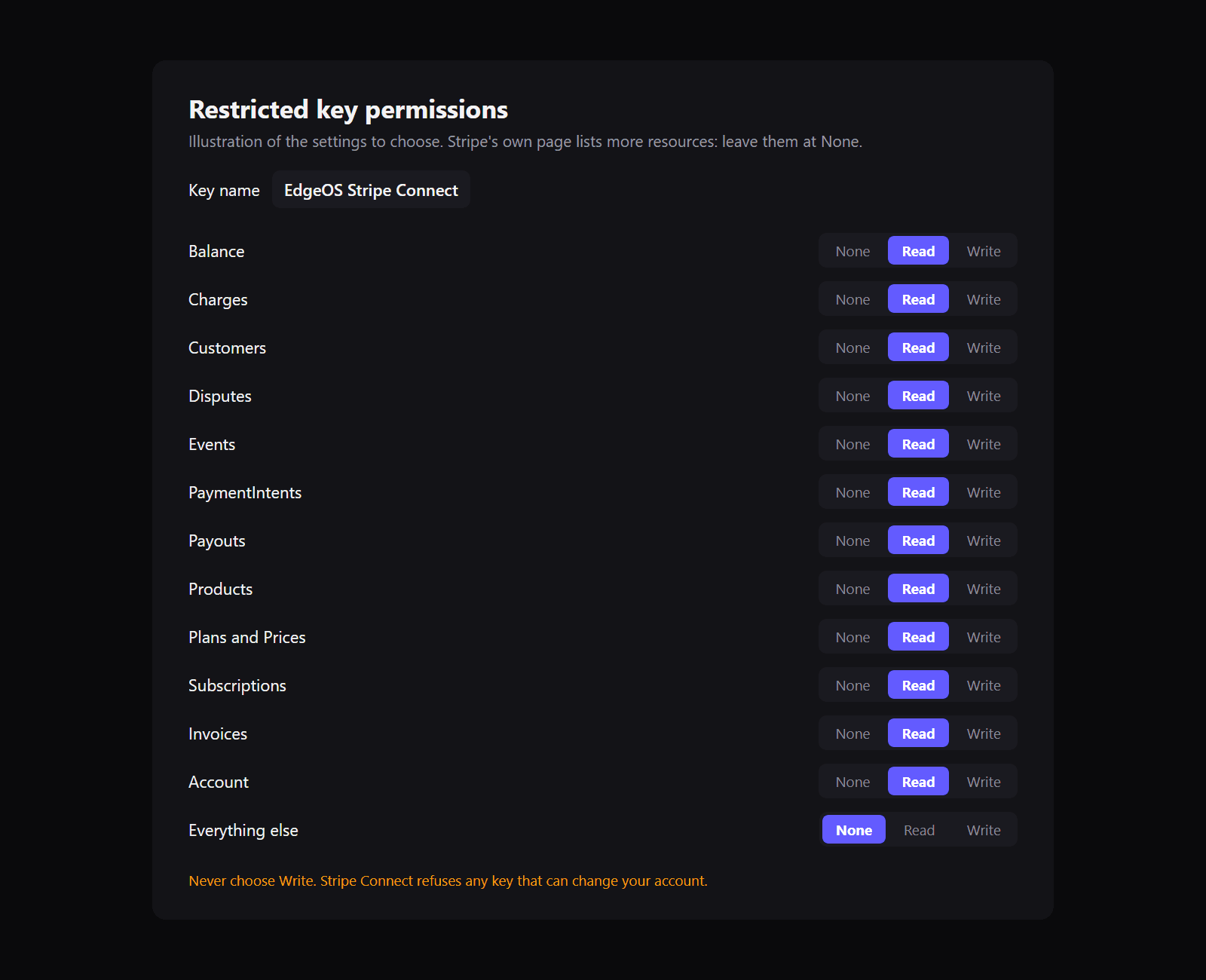
Only Balance and Charges are required. Without the others, the widget leaves out what it can't read and says which permission is missing.
Create and copy the key
Click Create key and confirm with Stripe's two-step check. Stripe shows the key, starting rk_live_ (or rk_test_), only once. Copy it now.
Paste it
- EdgeOS: open Settings → Integrations → Stripe, paste the key and click Connect.
- iCUE: tap Add key on the widget, paste the key and tap Connect. Allow the widget in Qaem Hub the first time it asks.
You'll see Connected to followed by your account's name. To show another Stripe account, add its key the same way. Each tile picks which account it shows.
How often it checks
Stripe counts every read of your account. It allows at least 10,000 reads a month, and more as you take more payments. Stripe Connect reads slowly to stay well inside that, and it reads nothing while no widget is on screen:
- New sales: every 5 minutes by default. You can choose 2 to 30 minutes in Settings → Integrations → Stripe.
- Totals and balance: every 2 hours, and right after a sale comes in.
- Subscriptions, customers and disputes: every 6 hours.
It also keeps what it has read, so restarting doesn't read it all again. The settings show how many reads it has used this month.
Sale alerts
In EdgeOS, a new sale shows in the bell in the app's top bar. You can also turn on Windows notifications and a short chime under Settings → Integrations → Stripe. The tile's edge flashes for a few seconds on a new sale (Flash on a new sale in the widget's settings).
Remove or revoke the key
-
Remove it from Stripe Connect:
- EdgeOS: Settings → Integrations → Stripe, then the bin next to the account.
- iCUE: the widget's settings, then remove the account.
This deletes the key from your PC.
-
Switch the key off for good: in Stripe, open API keys, click ⋯ next to the key, then Delete key. The widget then says the key was refused, until you paste a new one.
If you think a key was copied somewhere it shouldn't be, delete it in Stripe and make a new one. A read-only key can't move money, but it does show your sales and customers.
Troubleshooting
| The widget says | What to do |
|---|---|
| That's a secret key | Make a restricted key with Read permissions, as above. |
| This key can change things in your Stripe account | Edit the key in Stripe and set every permission to Read or None, or make a new one. |
| Stripe doesn't accept this key any more | The key was deleted, rolled or expired. Make a new one and paste it. |
| Can't read Subscriptions (or another resource) | Edit the key in Stripe and set that resource to Read. |
| Stripe asked to slow down | Something else is reading the same account a lot. The widget waits and tries again by itself. |