To put Twitch chat on a second monitor, open your channel's chat with Pop Out Chat (the chat's ⋮ menu) and drag that window to the other screen. Without a second monitor, use the Twitch app on your phone or tablet, or a small touchscreen beside your keyboard such as the CORSAIR XENEON EDGE with a chat widget that moderates in one tap. A chat window on the same screen as a full-screen game only works in borderless windowed mode, and it covers part of the game.
Which method suits you
| Method | Needs | Moderate from it | Stays visible over a full-screen game |
|---|---|---|---|
| Popout chat on a second monitor | A second monitor | Yes, Twitch's own tools | Yes, it's on the other screen |
| OBS custom browser dock | OBS Studio | Yes, Twitch's own tools | Only while OBS is in view |
| Twitch app on a phone or tablet | A phone or tablet | Yes | Yes, it's another device |
| EdgeOS on a monitor or touchscreen | EdgeOS (free; Twitch Chat widget is Premium) | Yes, tap a message | Yes, on a second screen |
| A Twitch chat widget on the XENEON EDGE (Twitchify) | iCUE and a XENEON EDGE | Yes, tap a message | Yes, it's another screen |
Put Twitch chat on a second monitor with popout chat
Open popout chat
On twitch.tv, open your channel, then click the ⋮ at the top of the chat and choose Pop Out Chat. Twitch opens the chat in its own window. Its address is https://www.twitch.tv/popout/yourchannel/chat, with your channel's login name in place of yourchannel.
Move it to the second monitor
Drag the window to the other screen and size it as you like. Use the browser's zoom (Ctrl + +) if the text is small from where you sit.
Keep it there
Most browsers reopen a window where you last left it. Bookmark the popout address so you can open it straight away next time.
Popout chat is Twitch's own chat, so moderation, emotes and badges all work as on the site. It's a browser window, though: it can end up behind other windows, and it has no stream stats or alerts.
Twitch chat as an OBS dock
If you stream with OBS Studio, chat can live inside OBS. Link your Twitch account in OBS's stream settings and OBS adds docks for chat and stream activity by itself. Or add any page as a dock: copy the popout chat address above, then add it under Custom Browser Docks (in the Docks menu, or View → Docks in older versions).
A dock is convenient while you look at OBS. It's no help while you're in a game, unless OBS sits on a second screen.
How to see Twitch chat without a second monitor
- Your phone or a tablet. The Twitch app shows your chat and lets you moderate. Prop it up beside the keyboard. It's free and you likely have one, but it's one more screen to unlock, and it's not where your hands are.
- A window on the same screen. Run the game in borderless windowed mode, so other windows can sit over it, and keep the popout chat in a corner. Exclusive full-screen games cover every other window. Microsoft PowerToys' Always On Top (Win + Ctrl + T) keeps the chat window above the game. You give up part of the picture.
- A small touchscreen. A strip under or beside your monitor shows chat where your eyes already are, and you can tap to moderate without leaving the game. The XENEON EDGE is made for this, but any small touchscreen Windows sees as a display works with EdgeOS: see using any touchscreen as a widget panel.
Twitch chat on the XENEON EDGE or a touchscreen
Twitch chat and moderation widget for iCUE (Twitchify)
Twitchify is a Twitch chat and moderation widget for the XENEON EDGE, in iCUE:
- One-tap moderation: tap any message to delete it, time out, warn or ban, across every channel you moderate.
- Mod tools: Shield Mode, the AutoMod queue and a viewer list you can moderate from.
- Split view: up to four chats side by side, with saved layouts.
- Activity feed: follows, subs, gift subs, cheers, raids and the stream going live.
- Emotes: real Twitch badges and emotes, plus BTTV, 7TV and FrankerFaceZ.
You sign in by approving a code on twitch.tv, with no developer console or keys to paste. See how to set up Twitch chat on the XENEON EDGE.

Watching, not streaming? Make chat follow the stream
If you watch streams on your main monitor and want the chat beside it, Twitchify Watch Sync is a free browser extension that tells Twitchify which channel you're watching. The chat on your Edge switches when you switch streams.
EdgeOS (any monitor, the XENEON EDGE, or any touchscreen)
EdgeOS runs on any Windows monitor as well as the Edge, so it covers the second-monitor case too.
- Free: the Twitch widget shows Twitch streams and chat, and the Browser widget can hold the popout chat address from above.
- Premium: the Twitch Chat widget is your channel's chat with emotes, badges and Tap a message to moderate (delete, a 10-minute timeout, or ban), plus a row of buttons for emote-only, slow, followers-only and subscriber-only mode that you can change. Put Twitch Live beside it for viewers, uptime and the next ad, Twitch Activity for follows, subs, bits and raids, and Twitch Actions for clips, markers, ads and raids. One Twitch sign-in covers every Twitch widget.
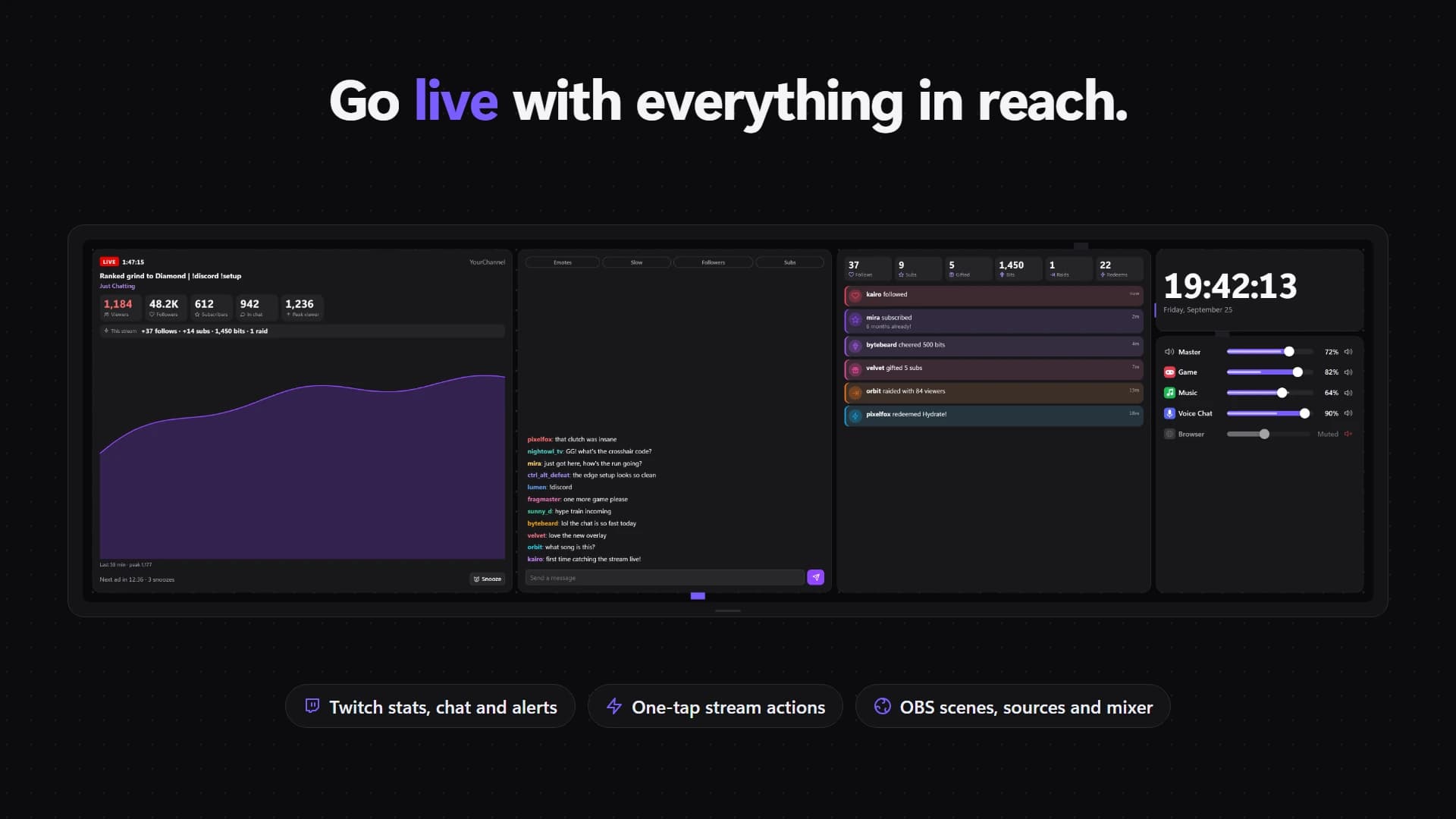
On a normal monitor, set EdgeOS to Always under Settings → Screens to keep it over every window, or Desktop only to keep it behind your apps. Twitch Chat is a tall widget, so it also suits an Edge mounted vertically.
Twitch chat in iCUE (Twitchify) or in EdgeOS?
- The iCUE widget (Twitchify) if you moderate several channels, want split view or the AutoMod queue, and already use iCUE.
- EdgeOS if you want chat next to OBS, Kick, your PC stats and everything else on one screen, or on a monitor that isn't a XENEON EDGE. Its Twitch and OBS widgets are part of Premium.
All the Twitch options are on the Twitch page, and full streaming layouts are in XENEON EDGE setup ideas.
Twitchify and EdgeOS are independent apps by QAEM. They aren't made by, affiliated with or endorsed by Twitch.