The best XENEON EDGE setups give the strip one job at a time: a gaming layout with your PC stats, volume and Discord; a streaming layout with chat, alerts and OBS; a work layout with your calendar, tasks and notes. Below are seven complete layouts built from real widgets, with what's free in EdgeOS, what needs Premium and what runs as an iCUE widget. Save each one as a profile and switch with a tap.
Two ways to put widgets on the XENEON EDGE
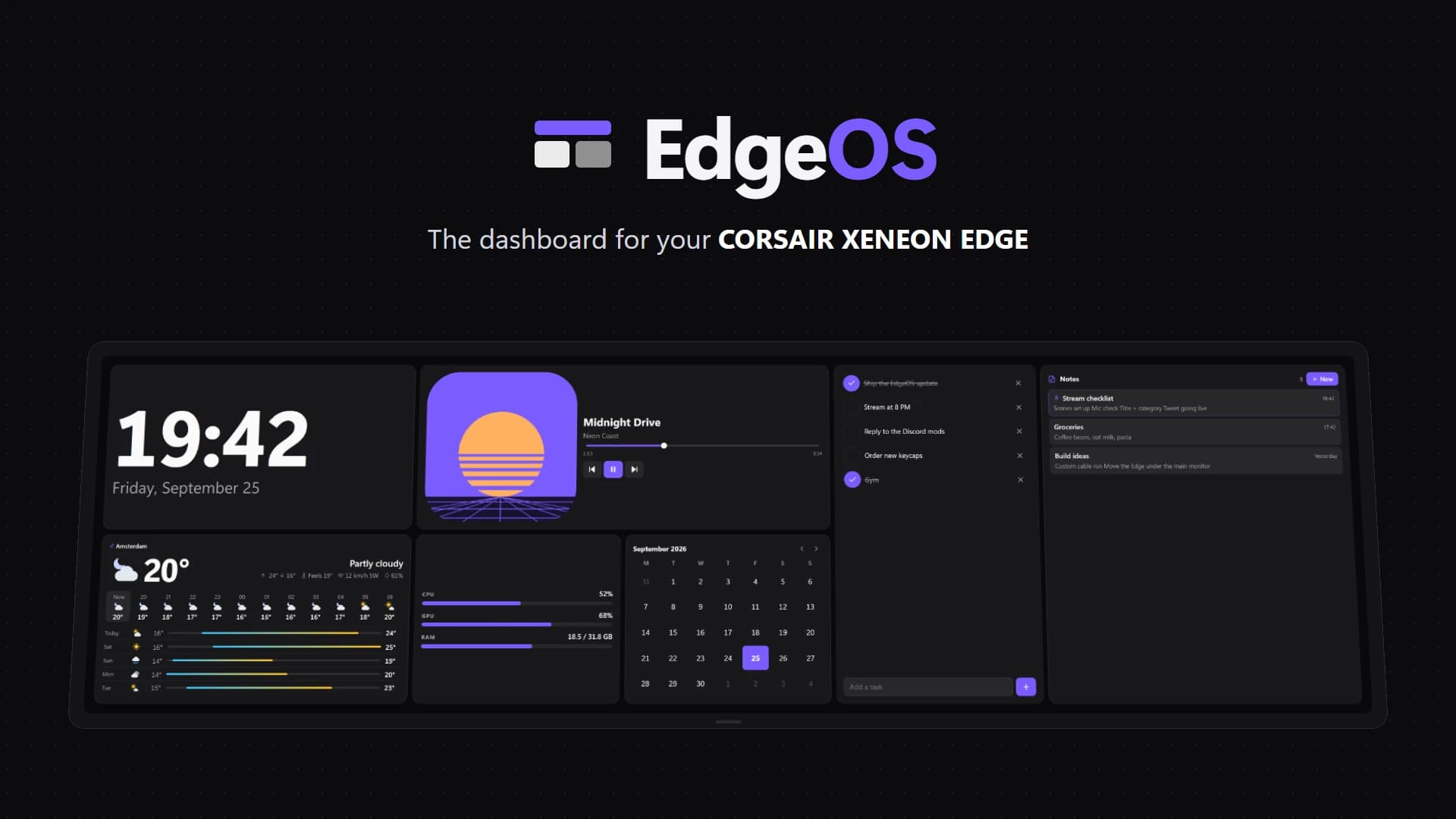
- EdgeOS, a free app for Windows. On the Edge it runs full screen (Desktop Mode, no iCUE needed) or inside iCUE as a widget (Widget Mode). It has 88 built-in widgets: 46 are free and the rest come with a one-time Premium upgrade. See every EdgeOS widget.
- iCUE widgets, imported into Corsair's iCUE one file at a time, many of them from the Elgato Marketplace. QAEM makes a Twitch chat widget (Twitchify), a Discord widget (Deckord), a YouTube widget (EdgeTube), an app launcher (Launchify) and others; see XENEON EDGE widgets and apps. New to them? See how to install an iCUE widget.
You can mix the two: EdgeOS in Widget Mode sits in iCUE next to your other widgets. EdgeOS vs iCUE widgets compares them side by side.
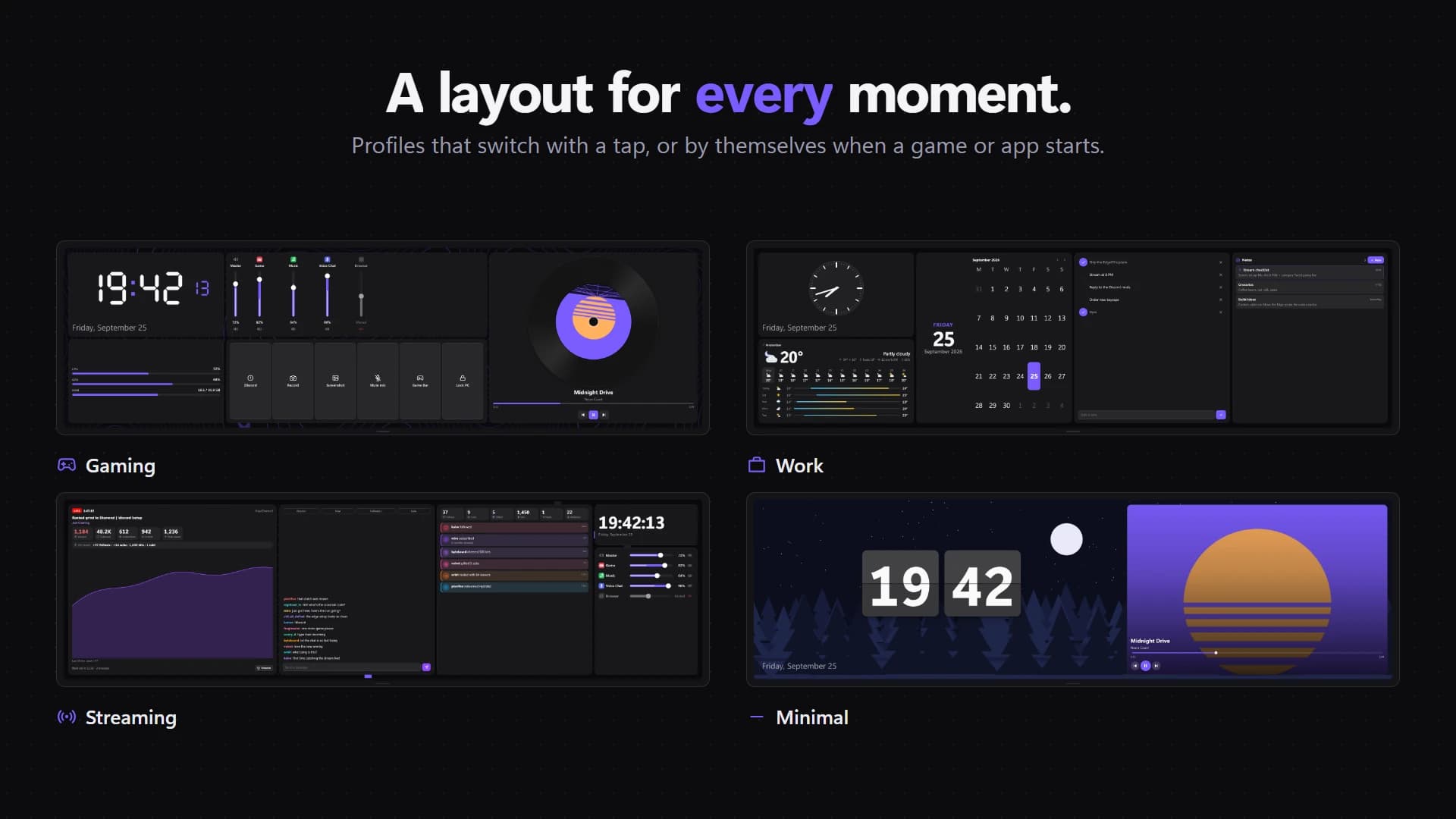
1. Gaming setup
What you look at between rounds: your PC's load and temperatures, the volume of the game against Discord, and what's playing.
- Free: CPU and GPU cards, or one System tile for CPU, GPU and memory together; the Volume Mixer with a slider for every app plus master and mic; Now Playing; a Clock; Quick Actions for screenshots, apps and links; Audio output to swap between headset and speakers with one tap.
- Premium adds: Game mode, the game you're playing with live FPS, 1% lows, a frame-time graph, and CPU and GPU load and temperatures; Steam Launcher, GameShelf (Steam, Epic, GOG, Battle.net, EA, Ubisoft, Xbox and Riot in one shelf) or Playnite Library to start games with a tap.
- In iCUE: Launchify for an app launcher that shows which apps are running, and Playnite Library.
2. Discord setup
For people who live in voice chat. The point is to see who's talking and change one person's volume without alt-tabbing.
- In iCUE: the Discord widget for the XENEON EDGE (Deckord) shows everyone in your voice channel, gives each teammate a 0–200% volume slider that matches Discord's own, pops up mentions and DMs, and plays soundboard sounds. It fits every tile size, from a small remote to a full dashboard. See how to set up Discord on the XENEON EDGE.
- In EdgeOS Premium: the Discord widget (Deckord) is built in, and Discord buttons (mute, deafen, camera, share screen and disconnect) go on your action bars and Quick Actions. They need the Deckord helper set up first.
- Around it: the free Volume Mixer for game vs voice chat, and Toggle Mute or Mute for a big mic button.
Deckord is an independent app by QAEM. It isn't made by, affiliated with or endorsed by Discord.
3. Streaming setup (Twitch, Kick and OBS)
Everything you'd otherwise keep on a second monitor while you're live.
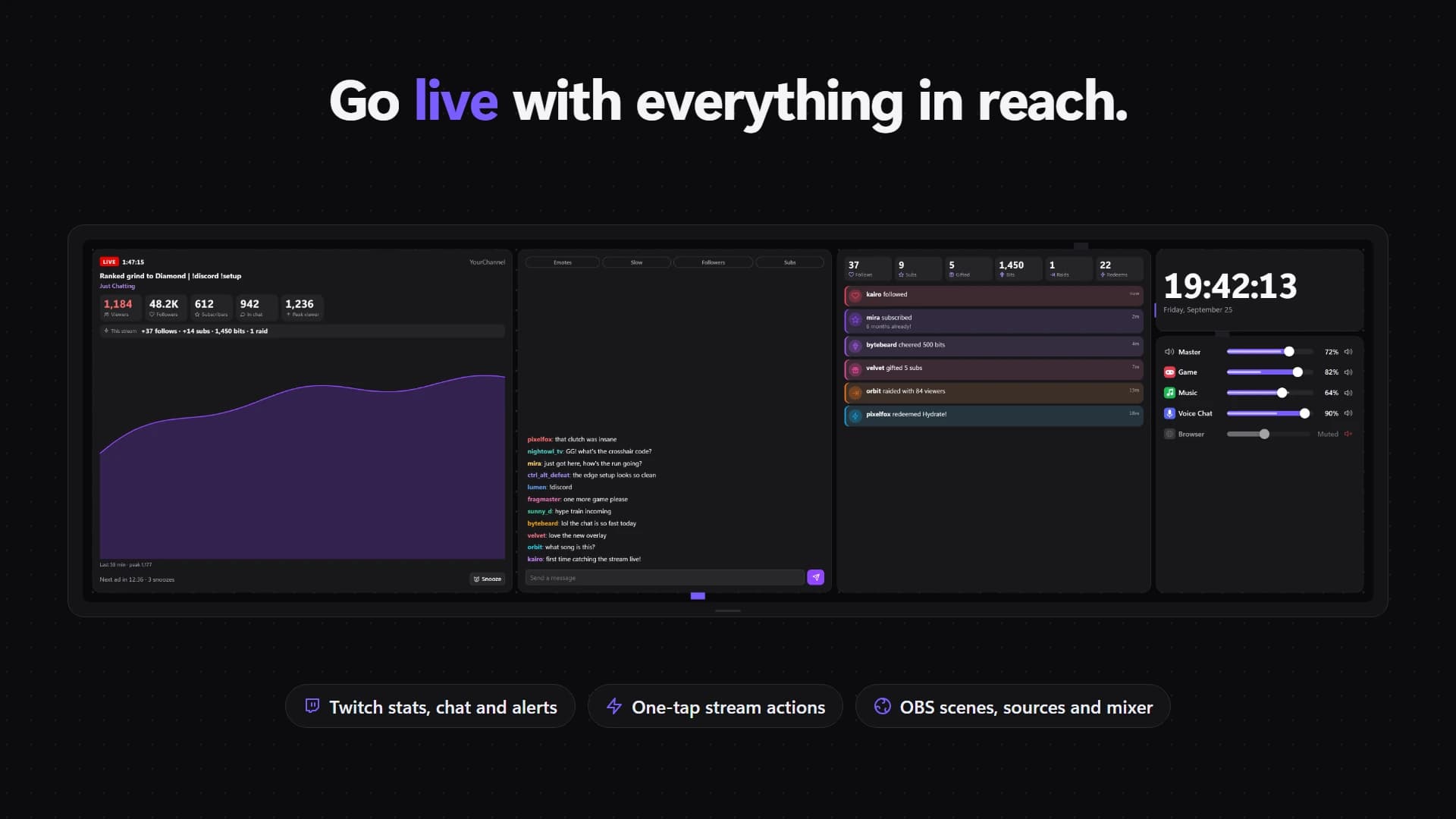
- EdgeOS Premium: Twitch Live (live or not, uptime, viewers, followers, subs and the next ad), Twitch Chat with tap-to-moderate, Twitch Activity and Twitch Actions for clips, markers, ads, chat modes, Shield Mode and raids. For OBS: OBS Scenes, OBS Buttons, OBS Mixer, OBS Status with bitrate and dropped frames, or the full OBS Studio widget with a live preview. Kick has its own set: Kick Live, Kick Chat, Kick Activity and more.
- In iCUE: the Twitch chat and moderation widget (Twitchify), with Shield Mode, the AutoMod queue and up to four chats side by side, and the Kick chat and alerts widget (Kickify).
- Audio: Wave Link Connect, with a fader, mute and live meter for every Elgato Wave Link channel, in iCUE or in EdgeOS Premium.
More on chat in particular: Twitch chat on a second monitor or the XENEON EDGE. Every Twitch option is on the Twitch and OBS Studio pages.
4. Work and productivity setup
A strip that keeps the day in view while your main screen does the work.
- Free: Calendar, Tasks, Notes, Weather, World clocks with up to six time zones, and the Timer with presets, a stopwatch and Pomodoro. Keep awake stops the PC sleeping during a long download or render.
- Premium adds the Connect widgets: Slack Connect (unreads, mentions and your status), Notion Connect (a database as a list or board you can tick off), Github Connect (pull requests with their checks, Actions runs, notifications), Obsidian Connect and Stripe Connect. Window mirror puts any app window live on the Edge.
- In iCUE: the same Connect widgets come as iCUE widgets (Github Connect, Slack Connect, Notion Connect and others; they're coming to the Elgato Marketplace), plus Gmail Connect for your inbox.
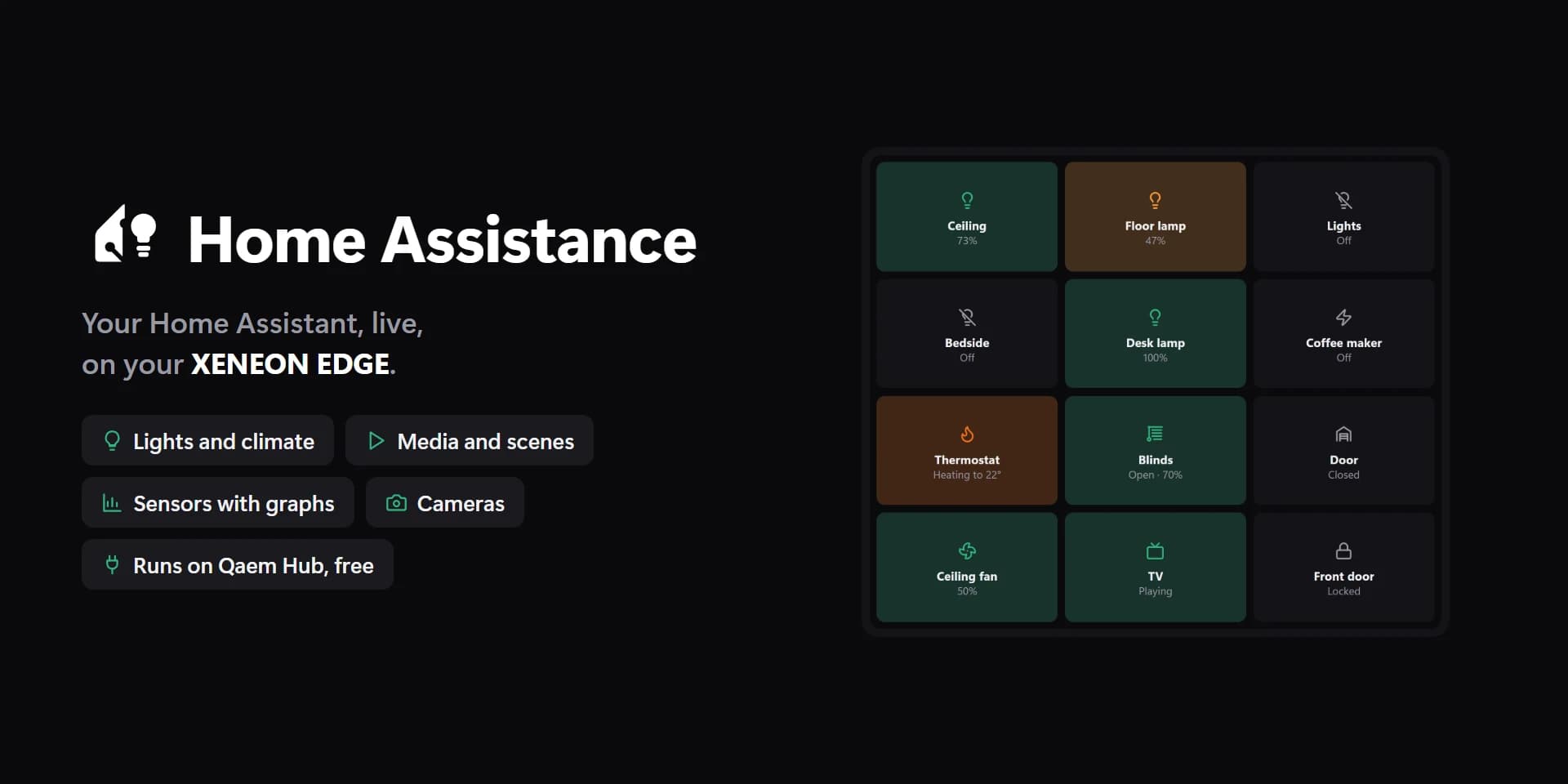
5. Smart home dashboard
The Edge makes a good wall of light switches, especially if your PC is where you spend the evening.
- EdgeOS Premium: Home Assistant shows lights, climate, blinds, media, scenes, locks, sensors and cameras with their own controls. Broadlink Connect turns the remotes you already own (TV, air conditioner, fan) into buttons, through a Broadlink device, all on your own network.
- Free around them: Weather glance, Photo frame for a slideshow from a folder, Upcoming for birthdays and trips, and Countdown.
- In iCUE: Home Assistance has six layouts (Tiles, Control, Room, Sensors, Scenes and Camera) and asks for a second tap before it unlocks or disarms anything. See setting it up.
6. Music setup
- Free: Now Playing shows the artwork, title and controls for Spotify, your browser, Apple Music or anything else that reports to Windows. Add the Volume Mixer and Audio output.
- Premium adds the Audio visualizer, a live spectrum of whatever your PC plays, as bars, a wave or a ring.
The full how-to, including YouTube Music and the iCUE options, is in Spotify on the XENEON EDGE.
7. Vertical setup
The Edge can stand on its end beside your monitor. EdgeOS keeps a separate portrait layout for each profile, and tall widgets such as Twitch Chat, Today or the CPU and GPU cards suit it best. See the XENEON EDGE in portrait.
More widget ideas
- A web page. The free Browser widget shows any site, live. The iFrame widget takes an embed code or an address, as in iCUE; sites that refuse to be embedded stay blank, so use Browser for those.
- A second PC. Remote PC (Premium) shows another PC on your network: its load, temperatures, the game it's running with FPS, and whether OBS is live.
- Your Stream Deck. Virtual Stream Deck (Premium) puts your Stream Deck keys on the Edge.
- A game. Wordle runs offline in iCUE, with a daily puzzle and endless practice.
- Football. Live scores, fixtures and tables, with goal alerts.
- Your own. A widget is a folder with a
widget.jsonand anindex.html. See build your own EdgeOS widget.
If you only add five widgets
- Now Playing (free): you'll use it every day.
- Volume Mixer (free): per-app volume without opening Windows' mixer.
- CPU and GPU (free): load at a glance, or Game mode with Premium for FPS.
- Calendar or Today (free).
- The one for your hobby: a Twitch chat widget (Twitchify) if you stream, a Discord widget (Deckord) if you're in Discord all evening, Home Assistant if you have a smart home.
Switch layouts by what you're doing
Save each setup above as a profile. Free has one profile; Premium adds Gaming, Work, Streaming, Minimal and your own, and can switch them by itself when an app comes to the front or at a time of day. A whole look, with its layouts, colours and backgrounds, can be shared as one file: see EdgeOS skins.
Start
Download EdgeOS (free, no account), then follow Set up EdgeOS. Premium can be tried free for 7 days from Settings → License.